Less Noise, More Work Done: An Automation Builder’s Guide to Calm Notifications in ClickUp + Zapier
An automation builder’s guide to reducing notification overload in ClickUp, Slack and email using simple, calm ClickUp + Zapier automation patterns.
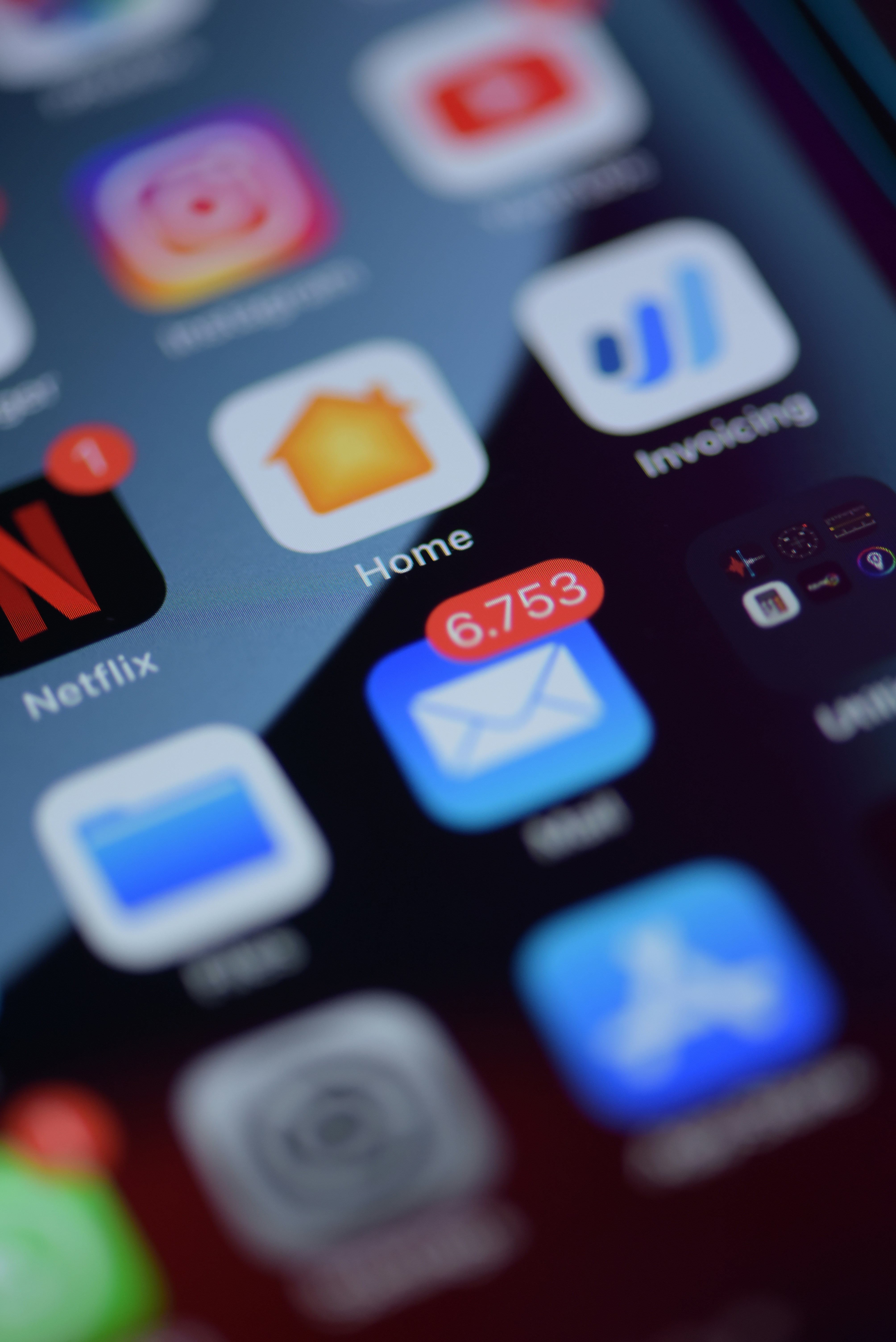
If your team has muted half the Slack channels and switched off ClickUp emails, you don’t have an engagement problem.
You have a notification design problem.
Across operators I work with, the pattern is the same:
- Every status change fires a notification somewhere.
- Zaps and native automations ping people for things they can’t act on.
- Nobody is sure which alerts actually matter.
- Important signals get buried under noise.
As an automation builder based in Norwich, Norfolk and working with teams worldwide, my job isn’t to add more alerts. It’s to design a calm automation layer where:
- The right person hears about the right thing at the right time.
- Everything else is logged quietly for later.
In this guide, we’ll walk through how an automation builder or automation agency can use ClickUp and Zapier to reduce noise while keeping work visible.
If you’d rather shortcut this and have help designing your own calm system, you can explore Toki’s Automation services. For now, let’s dig into the approach.
Why your team ignores alerts (and how that breaks automation)
When every change shouts, people stop listening.
Common signs:
- Slack DMs full of bot messages nobody reads.
- ClickUp notifications gathering dust until someone "clears all".
- Email rules quietly pushing system emails into a folder called "Later" that never gets checked.
The real cost isn’t annoyance – it’s missed work:
- Leads that never get followed up.
- Onboarding tasks that stall because nobody saw the handoff.
- Incidents that drag on because alerts blended into background noise.
Calm automation starts by admitting: not every event deserves an interruption.
Designing notification tiers: must-know, nice-to-know, log-only
Before touching ClickUp or Zapier, group events into three tiers:
- Must-know: If the right person doesn’t see this soon, something breaks (e.g. high-value lead, incident, blocked client task).
- Nice-to-know: Helpful context, but not urgent (e.g. a task moved from In Progress to Review).
- Log-only: Useful history, but nobody needs a ping (e.g. non-critical field updates).
As an automation builder, your job is to:
- Turn must-know events into clear, targeted notifications.
- Surface nice-to-know in views and dashboards, not constant alerts.
- Quietly store log-only events where operators can inspect them if needed.
This tiering becomes your blueprint for what to automate.
ClickUp-native automations vs Zapier for notifications
Both tools can send alerts – they just shine in different places.
Use ClickUp-native automations when:
- The trigger is a simple change inside ClickUp (status, assignee, due date).
- The action is another change in ClickUp (add a comment, change field, move List).
- You want fast, low-maintenance reactions.
Use Zapier when:
- The trigger is external (form submissions, payments, signatures).
- You need to touch multiple tools (Slack, email, CRM, billing).
- You want a central place to see automation history.
A calm system uses both, but rarely for the same event.
Example patterns: sales handoffs, onboarding milestones, incidents
Pattern 1 – Sales handoffs
Goal: When a deal closes, everybody involved knows what to do next, without five different pings.
- Trigger: Deal marked Won in CRM or ClickUp.
- Actions:
- Create onboarding tasks in a ClickUp List using a template.
- Post a single, well-formatted Slack message to an #ops or #onboarding channel with key details and a link to the ClickUp task.
- Log the event in a quiet "Automation log" List for audit.
No sprays of emails; one message, one source of truth.
Pattern 2 – Onboarding milestones
Goal: Keep clients moving through onboarding without constant chasing.
- Trigger: Task in the onboarding List moves to "Waiting on Client" or "Ready for Kickoff".
- Actions:
- Use ClickUp automation to tag the task and adjust due dates.
- Use Zapier (if needed) to send a templated email or ping an account manager, based on a Custom Field like Plan or Region.
Only meaningful state changes cause interruptions.
Pattern 3 – Incidents and issues
Goal: Make sure serious issues are seen fast, without turning every comment into a fire alarm.
- Trigger: Task enters an "Incident" or "Blocked" status, or a severity Custom Field is set to High.
- Actions:
- Create or update a single incident summary task.
- Post a concise Slack message into a dedicated incident channel with clear owner, severity and next review time.
- Optionally page on-call if your stack is more advanced.
Everything else (minor issues, comments) stays in ClickUp for async review.
How to review and prune noisy automations
Even a calm system drifts over time. Set a recurring task (ironically) to review automations monthly or quarterly.
Questions to ask:
- Which notifications do people always ignore?
- Where do important updates still arrive late?
- Which Zaps or native automations are failing the most?
- Is there any place where we send the same info three different ways?
The goal of each review:
- Remove automations that don’t demonstrably save time or reduce errors.
- Merge overlapping alerts into one clearer message.
- Tighten triggers so fewer, more relevant notifications go to the right people.
Think of this like gardening: a little pruning keeps the system healthy.
Frequently Asked Questions
Is it risky to reduce notifications?
Not if you’re intentional. You’re not turning things off at random – you’re deciding which events really matter and making those more visible, while moving the rest into views and logs.
Should we centralise all alerts in Slack?
Not always. Slack is great for real-time collaboration, but some teams benefit from keeping many updates inside ClickUp and using Slack only for must-know events.
Do we need a dedicated automation builder for this?
You need someone who owns automation design – internal or external. That might be an operations lead with systems skills, or an automation agency on retainer.
What about ClickUp AI and in-product assistants?
AI can help summarise activity and surface what changed, but it still needs a calm foundation. Think of AI as a helpful lens on top of a well-designed notification system, not a replacement for it.
How-To: Run a "Calm Notification" Reset for ClickUp & Zapier
Step 1: Export or list all current notification sources – ClickUp notifications, native automations, Zapier alerts, email rules, Slack bots – and group them by event type.
Step 2: Classify each event as must-know, nice-to-know or log-only, and document which roles actually need to see each one.
Step 3: Rebuild must-know notifications first: design a single, clear message per event with links back to the right ClickUp task or view.
Step 4: Move nice-to-know events out of real-time alerts and into ClickUp views, dashboards or periodic summaries (weekly digests, recap docs, etc.).
Step 5: Turn log-only events into quiet history: log them to a dedicated List or dashboard for audits, without pinging humans, and review your setup monthly.
Book a call with Jack
Read more resources

SDK vs MCP Explained: What They Are, in Plain English
SDK vs MCP, explained without the jargon. A Zapier Silver Partner uses a simple plug-socket analogy so any business owner can follow it easily.

ClickUp Reporting for Owners: The 5 Numbers That Matter
Which numbers should a business owner actually track in ClickUp? A Verified Consultant on the five metrics that matter and how to read them.
.jpeg)
Zapier vs Microsoft Power Automate: Which Should a UK Small Business Use?
Zapier or Power Automate for a UK small business already on Microsoft 365? An honest comparison of cost, ease of use and app coverage.